Imageupscaler

Practical image cases

See image upscaler examples free across three use cases

Use these image upscaler examples free as a guide to evaluating portraits, product photos, and artwork—not as a promise that every source will produce the same result. Start with a copy of your image and judge the enlarged version at its intended display size.

Check available options after handoff
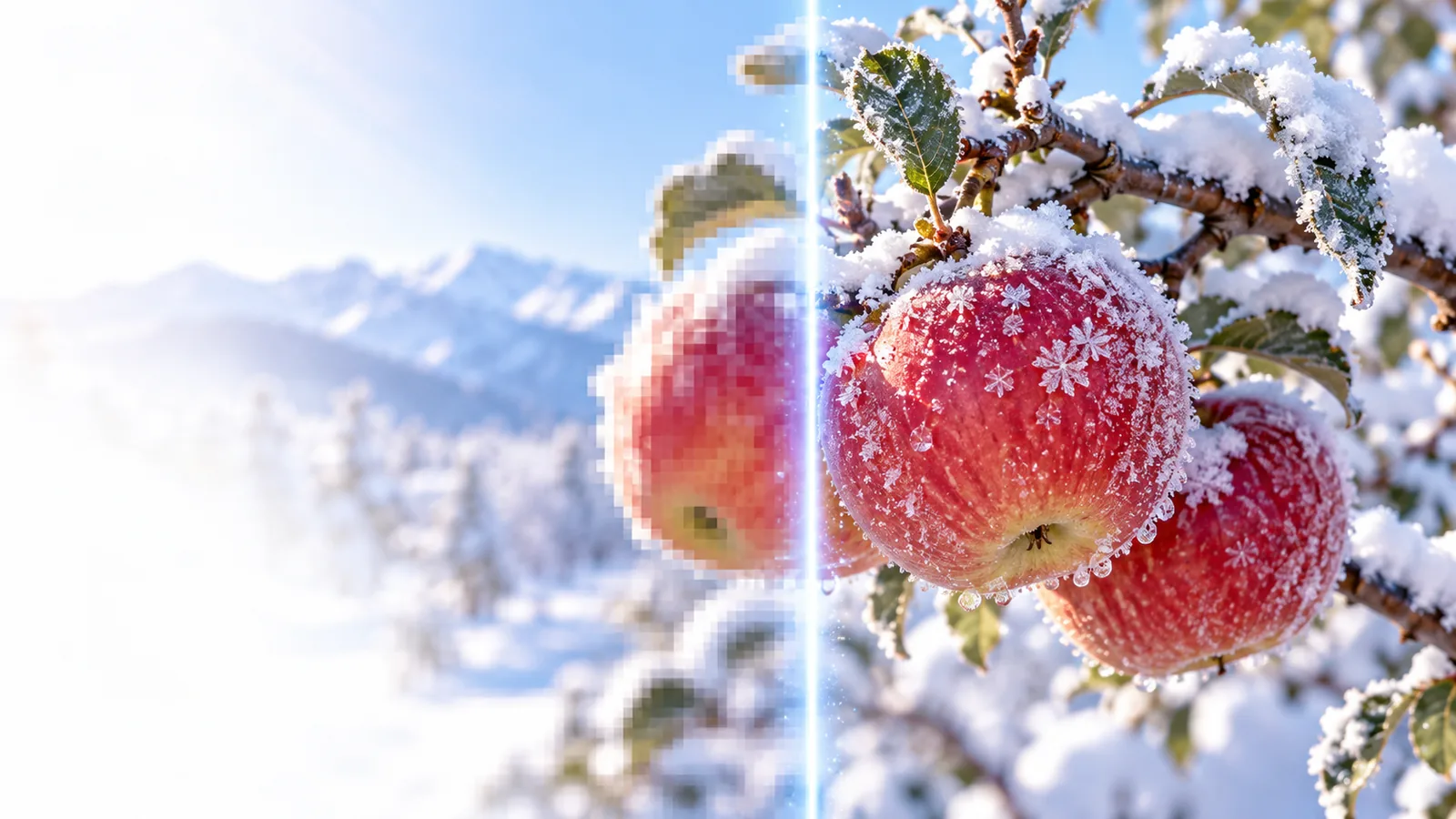
Imageupscaler hero image

When a small image meets a larger canvas

A thumbnail can look sharp on a phone yet reveal blur, compression blocks, or jagged edges when enlarged. The useful question is not just whether an image upscaler adds pixels, but whether the result still serves its purpose.

Three concrete workflows

For each case, keep the original beside the enlarged image. A useful free example shows both the improvement and the areas that still need scrutiny.

  1. 1

    Prepare a portrait for a larger profile crop

    Choose the clearest original rather than a screenshot of it. Enlarge a copy, then inspect eyes, hairlines, earrings, and the boundary between the face and background at the final crop size. If skin becomes waxy or individual strands appear invented, use a smaller crop or return to the source.

  2. 2

    Adapt a product photo for a listing

    Begin with the highest-resolution photo you own and leave space around the product for cropping. After using an image upscaler, compare printed labels, packaging edges, and color against the original. Do not publish an enlarged label if letters have changed shape; photograph the product again when accurate text matters.

  3. 3

    Enlarge artwork for a presentation

    Export the cleanest version available before enlarging. Check thin strokes, repeated patterns, and gradients against the source, both zoomed in and at slide size. If the image upscaler turns intentional texture into smooth plastic-looking areas, keep the original styling or recreate important lines in the artwork file.

What example outputs can and cannot prove

An attractive enlarged image is one example, not a guarantee for every upload. These limits matter most when the source contains information that viewers must read or trust.

Missing detail cannot be verified

An image upscaler may produce plausible-looking eyelashes, fabric weave, or leaf veins, but an enlargement alone cannot prove those details existed in the source. This makes a polished free example a poor substitute for an original photograph when accuracy matters.

Workaround

Keep the source available for comparison and obtain a better capture for documentary uses.

Tiny text may become misleading

Packaging, signs, and captions can look more legible after enlargement while containing altered letterforms. A before-and-after view should be checked character by character before the image appears in a listing or public presentation.

Workaround

Recreate essential text from a verified transcription rather than trusting enhanced pixels.

Artifacts can survive enlargement

JPEG blocks, motion blur, and heavy sharpening may remain visible or become more prominent. A free result that looks clean as a small preview might still fail on a large monitor or print.

Workaround

Evaluate a downloaded result at its intended size and try a cleaner source if available.

Compliance notes for source and output

Enlarging an image changes its presentation, not the permission to use it. Compare the original and enhanced version before sharing either one.

Original source
Enhanced version

Permission to use

Original source

Identify the owner and the use your license or permission allows.

Enhanced version

Keep the same permission check; enlargement does not grant new rights.

Attribution

Original source

Record the creator and any required credit wording.

Enhanced version

Carry required credit forward when you publish the enlarged image.

People pictured

Original source

Check whether the intended use requires consent or a release.

Enhanced version

Do not assume a clearer face changes or removes that requirement.

Product claims

Original source

Compare labels and visible features with the real product.

Enhanced version

Reject output that changes text, marks, colors, or apparent features.

Sensitive content

Original source

Consider whether the file contains private or confidential information.

Enhanced version

Review the destination's terms before uploading a sensitive source.

Record keeping

Original source

Retain an untouched copy and its provenance.

Enhanced version

Save the result separately so later viewers can identify the edit.

Test your own source image

These image upscaler examples free show what to inspect, but your source determines the meaningful test. Try your image, compare it with the original, and check the destination's available options before relying on a result.

Try image enlargement
  • Keep the original unchanged
  • Inspect important details at final size
  • Verify rights before publishing

Scenario FAQ

A useful example shows the original and enlarged image at comparable viewing sizes, with enough detail to inspect edges, text, and texture. It should also state what the image is for: a social crop, product listing, or presentation can each have different standards.

Choose a portrait with visible hair, eyes, and a clear boundary against the background. Those areas make smoothing and invented detail easier to spot. Compare the result at the size you plan to share, not only in a zoomed preview.

It can be suitable if you have permission to use the source and the result still accurately represents the product. Check labels, colors, and visible features against the original or the physical item. If text has changed, use a better photograph instead.

No single example can predict how a different source will enlarge. Lighting, focus, compression, and original dimensions all affect what an image upscaler has to work with. Test a copy of your own image and inspect the full result before publishing.

Upscale an image
Upscale an image