Imageupscaler

Comparison guide

Is an image upscaler alternative free to use? Check first

An image upscaler alternative free of guesswork is not necessarily free to use. If you only need a larger image, start with a dedicated upscaler; if you need to retouch it as well, compare a general-purpose editor. Verify access terms and inspect a test export before committing to either workflow.

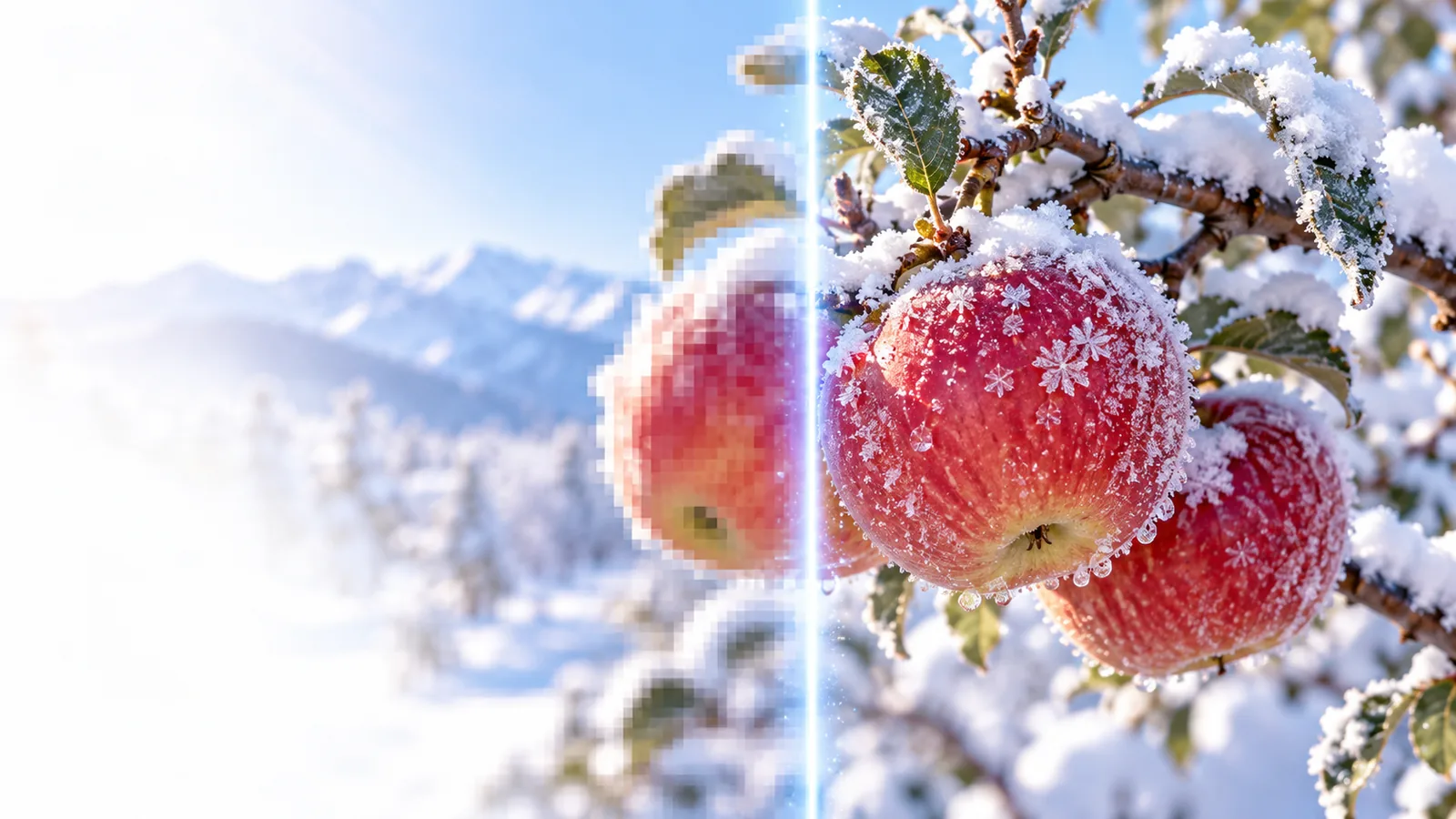
Image detail shown in a framed visual panel

Verdict first: narrow the kind of tool you need

These related guides separate questions about access, scale, and editing method so you can compare relevant options rather than every image tool at once.

Dimension by dimension: run a fair test

A comparison is useful only when both routes begin with the same original file and aim for the same final dimensions.

  1. 1

    Keep the original

    Save an untouched copy and note its pixel dimensions. Pick a file that represents your normal work, whether that is a portrait, a product photo, or a graphic with fine text. A tiny or heavily compressed source will expose different weaknesses from a clean photograph.

  2. 2

    Match the output goal

    Set the same intended width and height in each available workflow. Compare a dedicated upscaler with an editor only after accounting for any manual sharpening or cleanup you performed. Otherwise, you are comparing your editing time as much as the enlargement method.

  3. 3

    Inspect the delivered file

    Open each result at its actual display size and at 100% zoom. Check edges, faces, lettering, background texture, file dimensions, and any export restrictions. Keep the original nearby: a result that looks sharper can still contain invented texture or distracting halos.

Dimension by dimension: look beyond apparent sharpness

Use a before-and-after view to decide what improved, what merely changed, and whether the result serves its intended use.

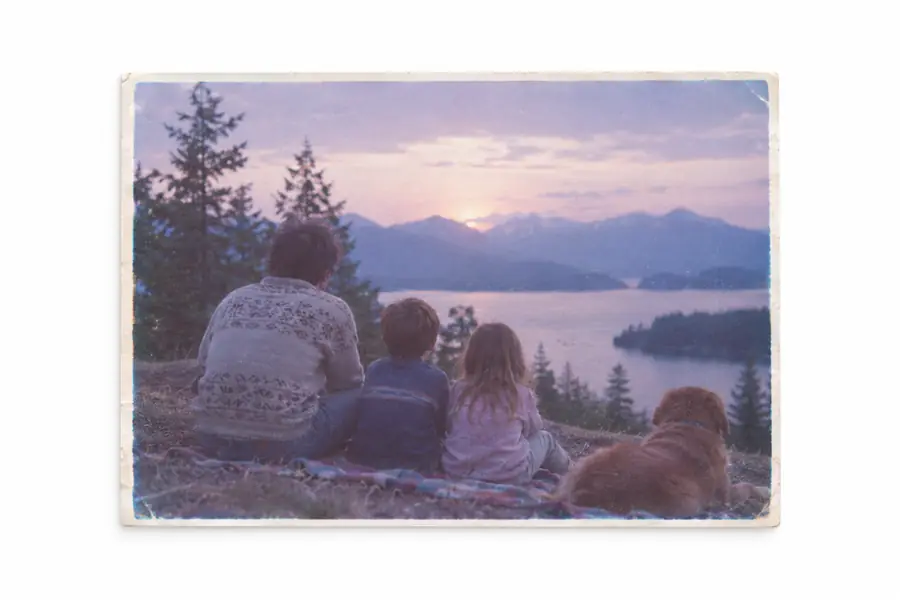
Example image before enlargement Before enlargement
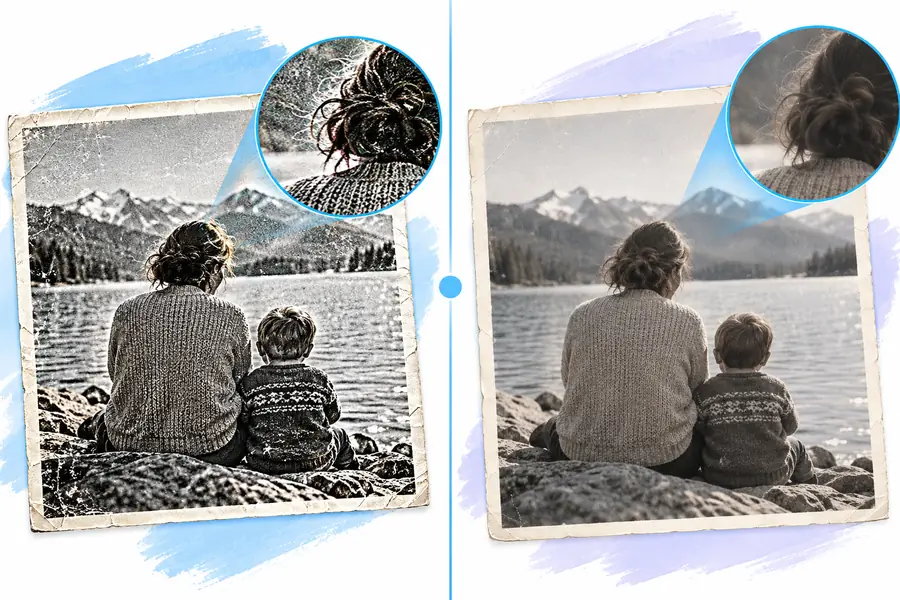
Example image presented after upscaling After enlargement
This pair illustrates what to inspect; it is not a controlled comparison of the tools discussed here or a guarantee that another image will improve in the same way. Pay particular attention to fine edges and areas that were indistinct in the source.

Who each suits: know the limits before switching

A dedicated route suits straightforward enlargement; an editor suits people who also need hands-on corrections. Neither category removes every source-image problem.

Missing detail cannot be verified

An enlargement method may create plausible-looking texture, but it cannot prove what a blurred sign, face, or distant object originally contained. Treat newly visible marks as an interpretation, not recovered evidence.

Workaround

Find a higher-resolution original when accuracy matters, and check any critical text or features against another source.

A larger file may still look poor

More pixels do not automatically fix motion blur, harsh compression, clipped highlights, or an out-of-focus subject. Sharpening can make those defects more conspicuous.

Workaround

Test a representative crop before processing a whole set, and compare the result at the size where it will actually appear.

Access terms vary by provider

A search for a no-cost alternative does not establish that a particular service permits unrestricted uploads, exports, or commercial use. Terms may also differ between previewing an image and obtaining a usable file.

Workaround

Read the current terms and confirm the export you need before uploading a full project.

Sensitive uploads require care

A browser-based workflow may send files to a service. This guide cannot establish how an individual provider stores, processes, or deletes an uploaded image.

Workaround

Check the provider's privacy documentation, or use an appropriate local editing workflow for confidential material.

Who each suits: the side-by-side verdict

If you want an image upscaler alternative free of unnecessary editing steps, compare a dedicated tool with an editor against the work you actually need to finish.

Dedicated upscaler
General-purpose image editor

Best fit

Dedicated upscaler

Enlarging an existing image when the main decision is whether its output looks usable.

General-purpose image editor

Enlarging an image that also needs cropping, masking, retouching, or layout work.

Typical workflow

Dedicated upscaler

Provide a source, choose from the options available, and inspect the resulting image.

General-purpose image editor

Set dimensions, apply available resampling controls, then make further edits as needed.

Creative control

Dedicated upscaler

Control depends on the particular tool; some decisions may be handled automatically.

General-purpose image editor

More room for selective corrections, provided you are willing to do the work.

Time investment

Dedicated upscaler

Often a simpler route for a single enlargement, though uploads and review still take time.

General-purpose image editor

Can take longer, especially when sharpening and cleanup are done manually.

Fine text and logos

Dedicated upscaler

Inspect closely for changed letterforms, uneven lines, or invented edge detail.

General-purpose image editor

Allows manual correction; a vector original remains preferable when one exists.

Privacy check

Dedicated upscaler

Determine where processing happens and review the provider's file-handling terms.

General-purpose image editor

Check whether the chosen editor and its enabled features process files locally or online.

Access and exports

Dedicated upscaler

Confirm current upload limits, output dimensions, file delivery, and permitted use.

General-purpose image editor

Confirm the editor's current access terms and whether it exports the format you require.

Decision rule

Dedicated upscaler

Choose it when a test image meets your quality and export needs without extra edits.

General-purpose image editor

Choose it when manual adjustments are essential to the finished image.

Migration path: test one image before moving a project

Make the next comparison concrete

Keep your original file, define the dimensions you need, and evaluate one representative output before changing your usual workflow. Imageupscaler can help frame that decision; the linked destination is a separate service, so check its current capabilities and terms for yourself.

Explore image tools
  • Compare output at the intended display size
  • Verify access and export conditions
  • Keep an untouched source file

Comparison FAQ

Separate the quality test from the access check. Look for the provider's current terms covering uploads, previews, downloadable files, output size, and permitted use before relying on a result.

A dedicated upscaler is a sensible first test when enlargement is the only task. An editor may suit you better when you also need selective sharpening, retouching, cropping, or other hands-on changes. Compare actual outputs from the same source rather than choosing by category alone.

No enlargement workflow can reliably reconstruct detail that was never captured. It may produce a clearer-looking interpretation, but that is different from verifying the original contents. Seek a better source file if an exact face, word, or product detail matters.

Test a typical image at your required dimensions, then inspect edges, text, texture, and the exported file. Confirm that the provider's current privacy and usage terms suit your project. Keep the original and your existing workflow available until the replacement passes those checks.

Upscale an image
Upscale an image