Imageupscaler

Resolution guide

Plan a larger image with image upscaler 4k

An image upscaler 4k workflow aims to make a picture suitable for a 3840 × 2160 display, but dimensions alone do not make it sharp. Start with the clearest original you have, then inspect the result at its intended viewing size.

Free to start · no signup
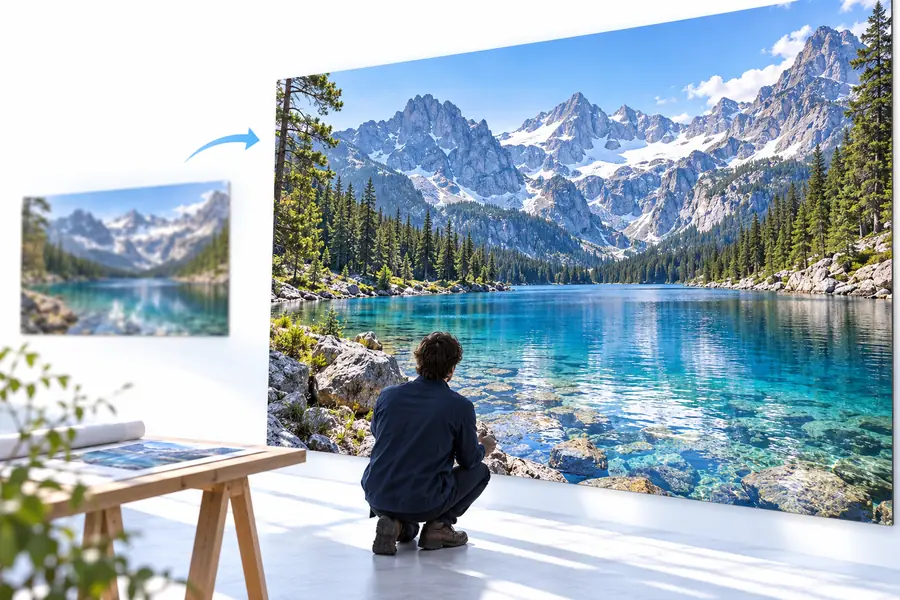
Imageupscaler landing visual showing an image enhancement scene

Know the limits

More pixels cannot recover every detail

Upscaling changes an image's dimensions. Whether it looks better depends on the source, the processing, and where the result will be viewed.

Lost focus stays uncertain

If the original is badly out of focus, an image upscaler cannot know the exact texture or lettering that the camera failed to capture. Apparent detail may be an estimate rather than a faithful reconstruction.

Workaround

Find a sharper original or reshoot when accuracy matters.
Compression can grow with the image

Blocky edges and ringing from a heavily compressed download may become more noticeable when enlarged, especially around text, branches, and high-contrast outlines.

Workaround

Use the least-compressed source available and compare edges at full size.

A 4K file is not a quality guarantee

An export measuring 3840 × 2160 pixels can still look soft on a large screen. Stretching a small source to those dimensions does not create reliable new information.

Workaround

Judge the output on the target display or at the size you intend to publish.

Cropping changes the required input

A portrait or square image needs a crop, background extension, or visible borders to fill a 16:9 display. Upscaling by itself does not decide which parts of the composition to discard.

Workaround

Choose the final aspect ratio and crop before assessing sharpness.

Working method

Three checks from source to screen

Treat enlargement as a short review cycle rather than a promise that every image will become clean 4K artwork.

  1. 1

    Select the strongest original

    Use the highest-quality copy you can access. Check focus, motion blur, compression, and small text before processing; weaknesses in the source are often the hardest problems to correct later.

  2. 2

    Specify the intended result

    Describe the subject and the desired natural appearance when you hand off your image. Keep the final display shape in mind: a 3840 × 2160 UHD frame is 16:9, so other shapes may need separate cropping.

  3. 3

    Inspect at realistic size

    Compare faces, fine patterns, lettering, and high-contrast edges with the original. View the result both zoomed in and at its actual use size; reject changes that look artificial even if the pixel count is higher.

Related routes

Choose the guide that matches your next step

A target resolution, a scale factor, and an editing method answer different questions. These related pages separate those decisions.

Visual review

Compare the image, not just its dimensions

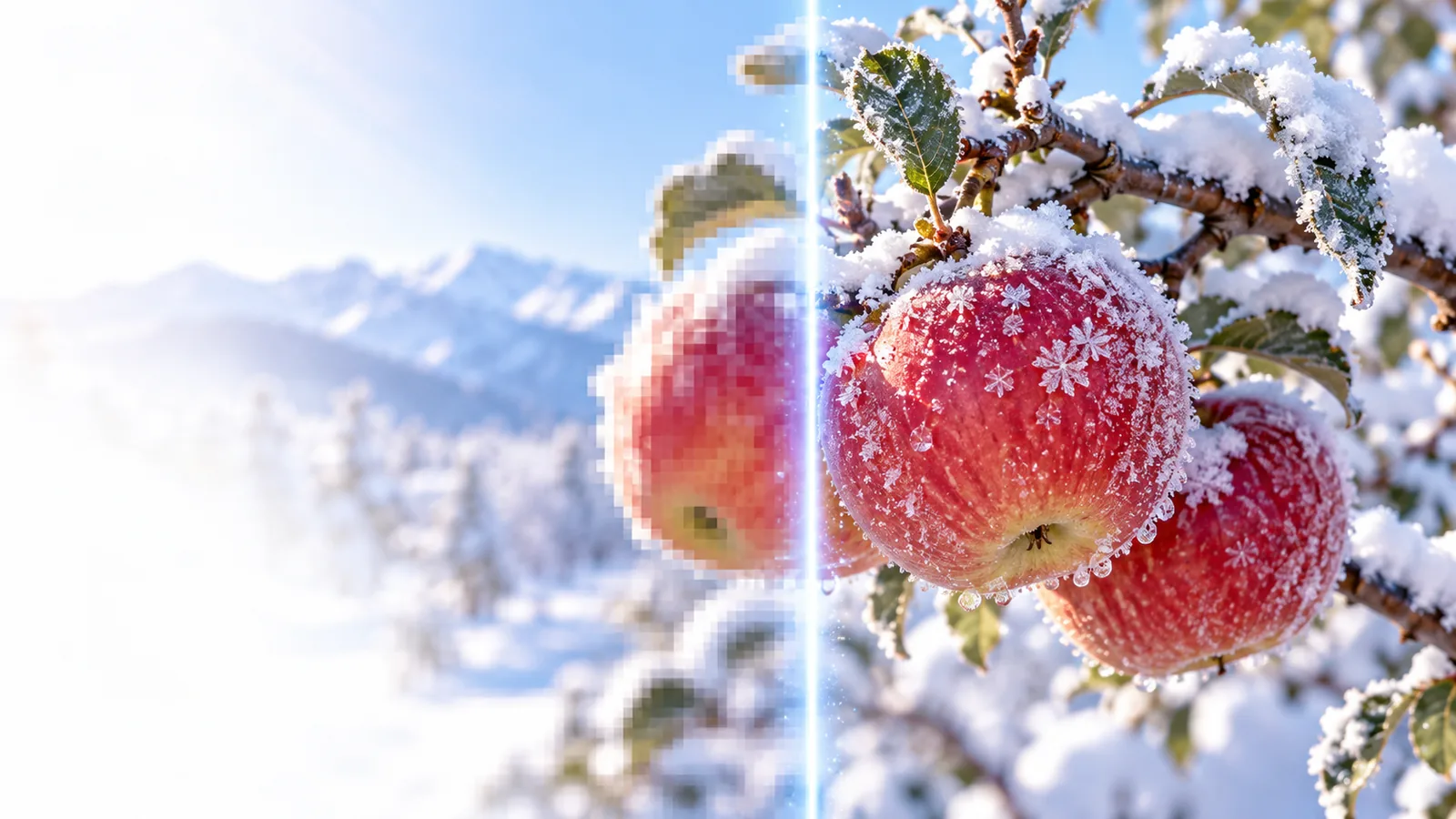
A before-and-after view can reveal whether an enlargement preserves the subject's character. Pay particular attention to edges and repeated textures.

Example image presented before upscaling Before
Example image presented after upscaling After
Illustrative comparison only; the images do not establish a measured 4K export or guarantee the same result for another source.

Where it helps

Match the workflow to the picture

The best review point changes with the subject. Pick a workflow that protects what viewers will notice first.

Phone photographer

A favorite photo looks fine on a handset but may appear soft on a larger display.

Check the original for motion blur, then inspect skin, hair, and background texture after enlargement rather than judging only the file dimensions.

image upscaler for android

Presentation designer

A visual must fit a widescreen slide without cutting off its subject.

Set the slide's aspect ratio first and decide whether cropping or borders preserve the composition. Then review small text at presentation size.

image upscaler canva

Photo editor

A client image needs careful retouching alongside a larger export.

Keep an untouched copy and compare enlargement with the editor's own resizing options. Check whether fine details remain believable before delivery.

How do you upscale an image in Photoshop?

Ready to assess

Start with an image worth enlarging

See how your image holds up

Bring your clearest original and a specific viewing goal. An image upscaler 4k request is most useful when you also check the resulting crop, texture, and legibility instead of relying on the resolution label alone.

Enhance my image
  • Keep the original for comparison
  • Check the final aspect ratio
  • Inspect detail at viewing size

Common questions

4K upscaling questions

Consumer UHD screens commonly use 3840 × 2160 pixels, with a 16:9 aspect ratio. Digital cinema's 4K standard is 4096 × 2160, so confirm which dimensions your project requires.

It can be enlarged to 4K dimensions, but visible quality depends on how much usable detail remains in the original. A severely blurred or compressed source may still look soft or develop artificial-looking texture.

No. A 4× scale factor describes a change relative to the starting image, while 4K describes a target resolution. The result depends on the source dimensions and on whether the scale factor refers to width and height or total pixel count.

Decide on the final aspect ratio early so you know what content must remain visible. Preserve an untouched original, and compare crops before committing to a larger output; an aggressive crop leaves fewer source pixels to work with.

View it at the size and distance where it will actually be used, then examine important details at full size. Look for readable text, believable faces, clean edges, and textures that do not appear waxy or invented.

Upscale an image
Upscale an image