Imageupscaler

Practical image guide

Trying an image upscaler free? Start with one photo

A free entry point is useful only if its limits fit your image and intended use. Imageupscaler helps you plan a small test, inspect the result, and avoid mistaking added pixels for recovered detail.

Free to start · no signup
Image enhancement imagery

prerequisites

Before trying an image upscaler, choose a source you can inspect closely. A sharp original at modest dimensions is a better test than a screenshot that is already heavily blurred or compressed.

Choose a test that reflects your work

Use an image with a known purpose, then judge the parts that matter for that purpose. These starting points help make a first comparison meaningful.

Small-shop owner

Start with a product photo whose label and edges are visible in the original. Note the image dimensions and keep a copy before testing enlargement.

Inspect whether packaging text stays legible and colors remain plausible, rather than judging only the overall sharpness.

image upscaler examples free
Social media creator

Test a graphic at the size you actually plan to post. Check any lettering separately because invented strokes can make short words look wrong.

Decide whether the result works at display size, not just when zoomed far beyond normal viewing.

image upscaler canva

Phone photographer

Pick a well-lit image rather than the darkest or most motion-blurred shot on your phone. Keep the untouched photo for comparison.

Look for natural skin, hair, and background texture before sharing an enlarged version.

image upscaler for android

Print project maker

Begin with the cleanest available source and check the dimensions required by your intended print layout.

Review edges and fine patterns at the planned print size; extra pixels alone do not establish print quality.

image upscaler 4k

one full run-through

Run one controlled test before processing a whole collection. Keep the original available so changes are easy to spot.

  1. 1

    Select a representative original

    Choose an image with both fine edges and smooth areas, such as a product photo against a plain background. Record its dimensions and avoid editing your only copy.

  2. 2

    Describe the intended improvement

    Specify the subject and what must remain unchanged, especially text, faces, or brand colors. Follow the destination's displayed access terms before submitting anything sensitive.

  3. 3

    Compare at a useful viewing size

    Inspect the original and result side by side. Check lettering, outlines, texture, and color, then decide whether the output suits the final screen or print size.

options table

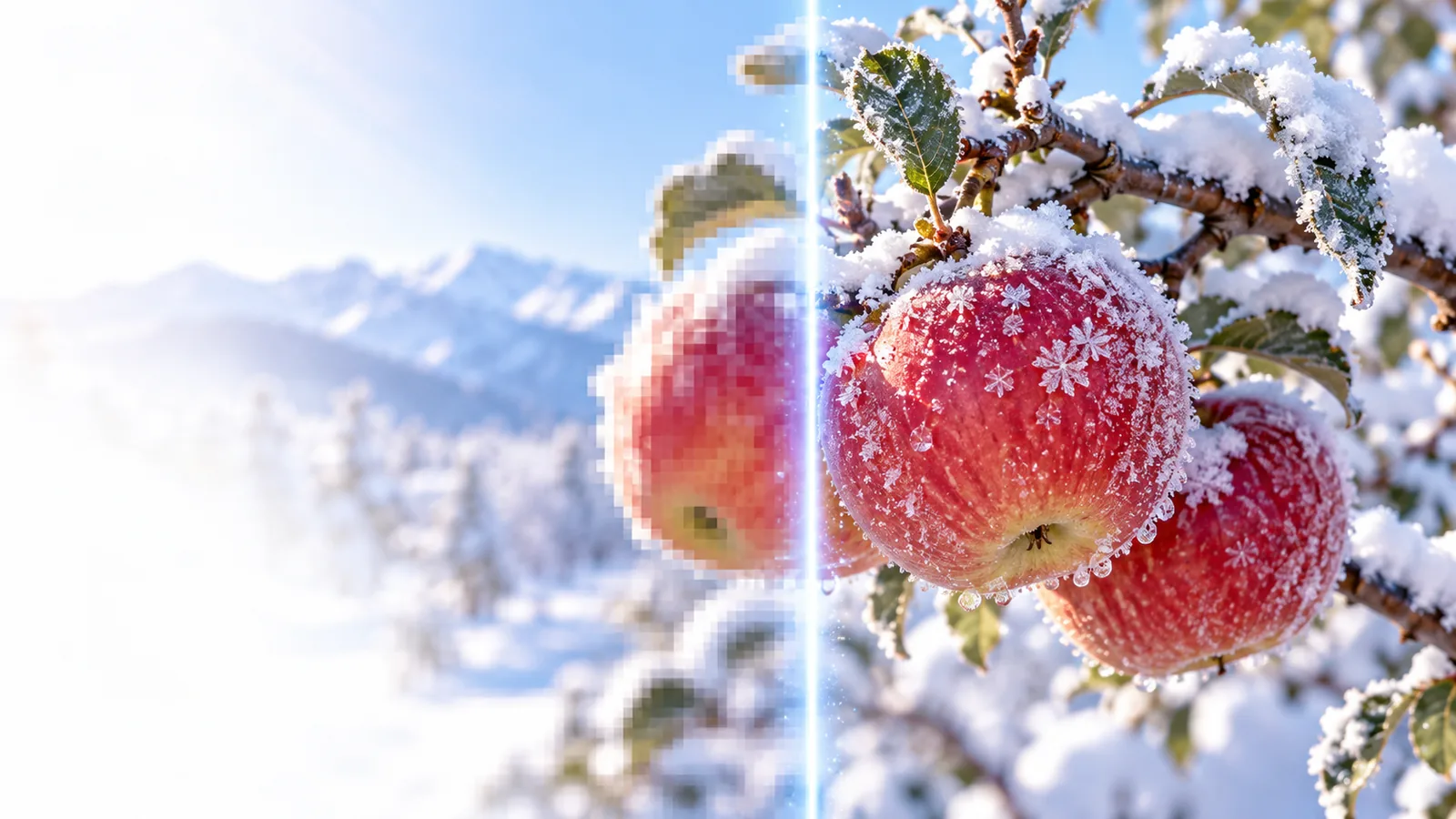
Treat this visual comparison as a checklist for any enlargement method: compare edge definition, fine texture, text, and color instead of relying on pixel dimensions alone.

Illustrative image shown before upscaling Before
Illustrative image shown after upscaling After
Illustrative comparison only. Results vary by source image and processing method; these images do not establish the output or access terms of the linked destination.

what fails

An image upscaler free entry point does not guarantee a usable result, unrestricted access, or faithful reconstruction. Check these limitations before depending on an output.

Missing detail stays uncertain

When an original face, sign, or object is too small to resolve, enlargement may add plausible-looking detail rather than recover the true detail.

Workaround

Find a higher-quality source, or treat the result as an interpretation rather than evidence.

Damaged text may change

Letters compressed into a few pixels can turn into convincing but incorrect marks. This matters for labels, documents, and logos.

Workaround

Compare every word with the source and recreate critical text separately when accuracy matters.

Access conditions can differ

A search for a free option does not establish the destination's current limits, account requirements, permitted uses, or download terms.

Workaround

Read the terms shown at the destination before uploading work or relying on an export.

A private photo may be unsuitable

Sending an image to an external service can be inappropriate when it contains confidential documents or identifiable people.

Workaround

Review the service's privacy information first, or use a suitable local workflow.

Make the next test count

Try one image, then judge the result

Bring a representative source and a clear goal. Check the destination's current access terms, submit only an image you are comfortable using there, and compare the output against your original before using it.

Explore image tools
  • Keep your original file
  • Inspect text and fine edges
  • Check terms before uploading

its own FAQ

That depends on the service and its current terms. Check the destination for any trial access, export restrictions, account requirements, or charges before you upload an image.

No enlargement method can verify detail that is absent from the source. A result may look sharper because new pixels were estimated or generated, so inspect important features against the original.

Choose an image you know well, with a mix of clear edges, texture, and smooth areas. Keep the original and test at the size you intend to display or print.

Small or compressed lettering may not contain enough information to identify every character. Compare the output word by word, and replace essential text manually if accuracy is required.

Upscale an image
Upscale an image