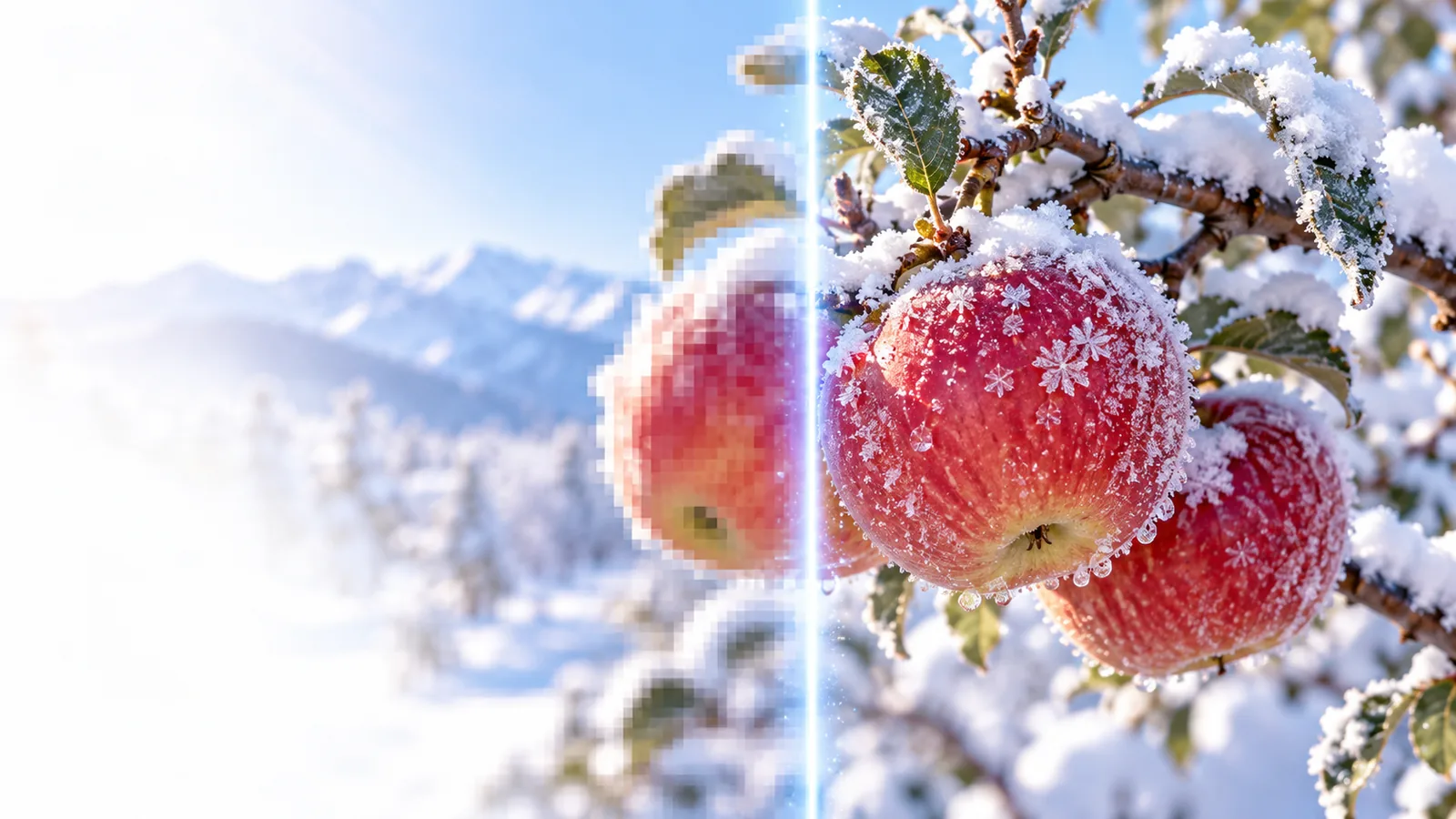
Imageupscaler

Browser-based workflow

Choosing a free image upscaler online for your photo

An image upscaler can make a small picture easier to use, but more pixels do not automatically mean more real detail. Describe what you want to improve, then inspect the available options and judge the result against your original.

Check available options at the destination
Imageupscaler landing visual

Choose your route

This online entry point versus the general guide

Start here when your immediate question is how to approach enlargement in a browser. The general image upscaler guide is broader; these related pages focus on particular goals.

Know the boundaries

Three things an online route cannot guarantee

An online starting point helps you evaluate an image upscaler without defining what the destination will accept or produce.

It cannot recover detail that was never captured

A tiny face or heavily compressed texture may appear smoother or sharper without becoming a faithful record of the original scene.

Workaround

Compare facial features, text, and fine edges with the source; use a higher-quality original if you have one.

It cannot promise access terms

The destination controls its own availability, account requirements, supported inputs, and any charges. This guide cannot verify those conditions for your session.

Workaround

Review the destination's current terms before submitting an image.

It cannot make a private image risk-free to share

Using an online service may involve transferring your image. A photo can contain faces, documents, or location clues that you did not intend to disclose.

Workaround

Remove sensitive content and review the destination's privacy information before proceeding.

A simple workflow

How to start with an image upscaler online

Keep the original file so you can judge whether the enlarged version is genuinely more useful.

  1. 1

    Choose a suitable source

    Pick the clearest original you possess rather than a screenshot of a screenshot. Note its dimensions and look for compression blocks, blur, or clipped text.

  2. 2

    Describe the intended improvement

    State whether you care most about readable edges, natural texture, or a larger display size. Follow the destination's available workflow rather than assuming particular controls exist.

  3. 3

    Compare at the size you will use

    Inspect the output beside the source at normal viewing size and close up. Watch for invented details, halos around edges, and changes to recognizable features.

Decision guide

Online workflow versus the general image upscaler guide

The distinction is the question you need answered, not a promise that one route has different product features.

Online workflow
General guide

Starting question

Online workflow

How should I approach enlargement from a browser?

General guide

What does image enlargement involve?

First check

Online workflow

Review the destination's current access and input options.

General guide

Decide whether enlargement suits the source image.

Source preparation

Online workflow

Keep the clearest available original ready.

General guide

Understand how source quality affects the result.

Privacy decision

Online workflow

Check whether this image is appropriate to submit online.

General guide

Consider privacy as one part of choosing a method.

Result review

Online workflow

Compare the output with the file you submitted.

General guide

Learn which visual changes indicate a useful result.

Best fit

Online workflow

You are ready to assess an available browser-based option.

General guide

You are still deciding what kind of upscaling you need.

Match the task

Where an online enlargement workflow fits

The right image upscaler choice depends on where the finished picture will appear and how closely it must match the source.

Presentation designer

A small photo needs to occupy more space on a slide.

Check it at projected size before treating extra pixels as an improvement.

image upscaler 4k

Casual photo editor

An older picture looks soft, and access terms matter before trying a service.

Review the current conditions first, then compare any result with the original.

image upscaler free

Mobile creator

A picture is being prepared on a phone for a larger post.

Check the practical considerations of working from an Android device.

image upscaler for android

Look closely

Judge the visible change, not just the pixel count

A before-and-after view can help you spot cleaner edges, but it cannot establish that newly visible detail is accurate.

Example image before upscaling Before
Example image after upscaling After
Illustrative comparison; inspect your own image at its intended display size before deciding whether the change helps.

Ready to assess

Take the next step with your image

Explore an image upscaler with a clear goal

Keep your source image, decide what improvement matters, and review the destination's current options and terms. If you proceed, compare the result with the original rather than relying on its dimensions alone.

Explore image options
  • Start with your clearest source
  • Check privacy before submitting
  • Inspect the result at viewing size

Common questions

Online image upscaling FAQ

An online workflow is intended to be accessed through a browser, but the destination determines what it currently offers. Check its access requirements and terms before submitting a file; this page does not guarantee free use.

It may change the apparent sharpness, but it cannot reliably reconstruct information missing from a blurred source. Compare faces, lettering, and fine patterns closely because a convincing-looking detail may not be faithful.

Use the least compressed, highest-quality original available to you. Avoid repeatedly saved copies or screenshots when the original file is still accessible.

That depends on the content of the photo and the service's current privacy practices. Check for sensitive details in the image and read the destination's privacy information before you submit it.

Upscale an image
Upscale an image