Missing detail stays uncertain
Upscaling may make edges appear more defined, but it cannot verify features absent from the original photo.
Workaround
Find the original camera file or a higher-resolution export when accuracy matters.
Canva image workflow
A small photo can look acceptable in a thumbnail but soft when it fills a Canva layout. Upscale the source first, inspect it at the intended size, then bring the result into your design. Imageupscaler is a starting point for that preparation, not a feature inside Canva.
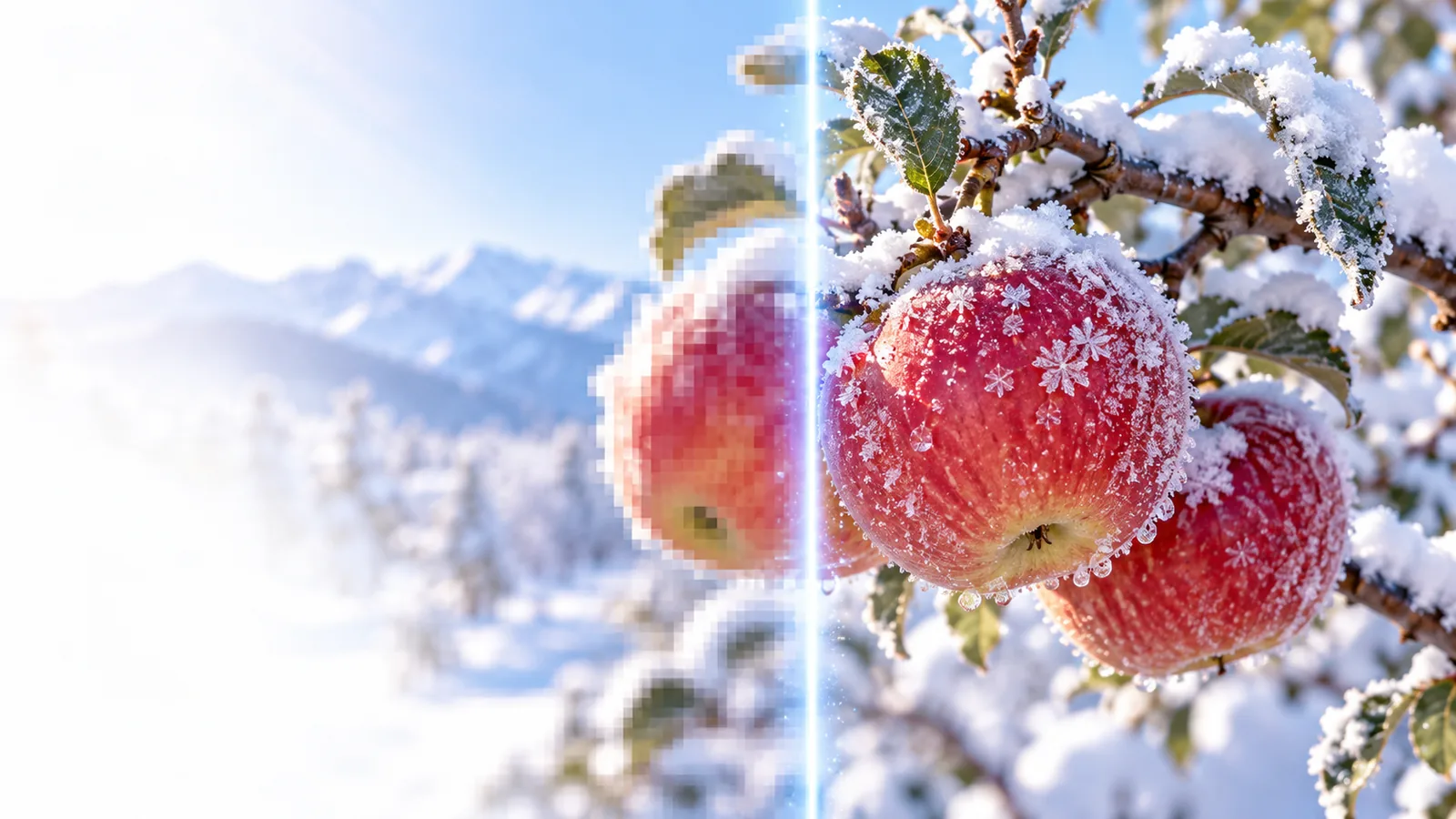
The useful result is an image that holds up at its actual placement size, not merely one with larger pixel dimensions. Compare adjacent workflows when the source or destination changes.
An image upscaler canva workflow cannot replace a suitable original. Treat the enlarged file as a candidate to review, especially when the design contains faces, text, or product details.
Upscaling may make edges appear more defined, but it cannot verify features absent from the original photo.
Workaround
Find the original camera file or a higher-resolution export when accuracy matters.
Tiny lettering on packaging, signs, and screenshots can become distorted or deceptively crisp.
Workaround
Rebuild important words as editable text in Canva instead of relying on enlarged pixels.
This workflow does not imply an in-editor integration or an automatic update to an existing Canva design.
Workaround
Save the prepared image, add it to your design, and replace the earlier placement manually.
Work from the final use backward. A small social tile and a full-page flyer can expose very different flaws in the same source image.
Check how much of the Canva page the photo will occupy and whether it will be cropped. A tight crop asks more of the source than a small inset image.
Use the image preparation route, then compare the result with the original at the approximate display size. Look at hair, edges, labels, and smooth backgrounds.
Add the prepared file to Canva and check the complete composition. If a face or product name looks wrong, return to a better source rather than sharpening it repeatedly.
The right fix depends on what the design must communicate. These examples focus on decisions you can make before committing an enlarged image to a layout.
A phone photo looks soft behind a headline in a social graphic.
Check the original capture, prepare a larger version, and inspect the subject after cropping. If the phone file is the only source, review the mobile-specific workflow.
image upscaler for androidA product image has a readable shape but tiny packaging text.
Keep the product photo, but recreate essential wording as editable design text. Use examples to judge whether the photographic detail itself improves.
image upscaler examples freeA cropped portrait is stretched across a large poster area.
Estimate the placement size before preparing the portrait, then inspect facial features at the intended crop instead of judging only a thumbnail.
image upscaler 4k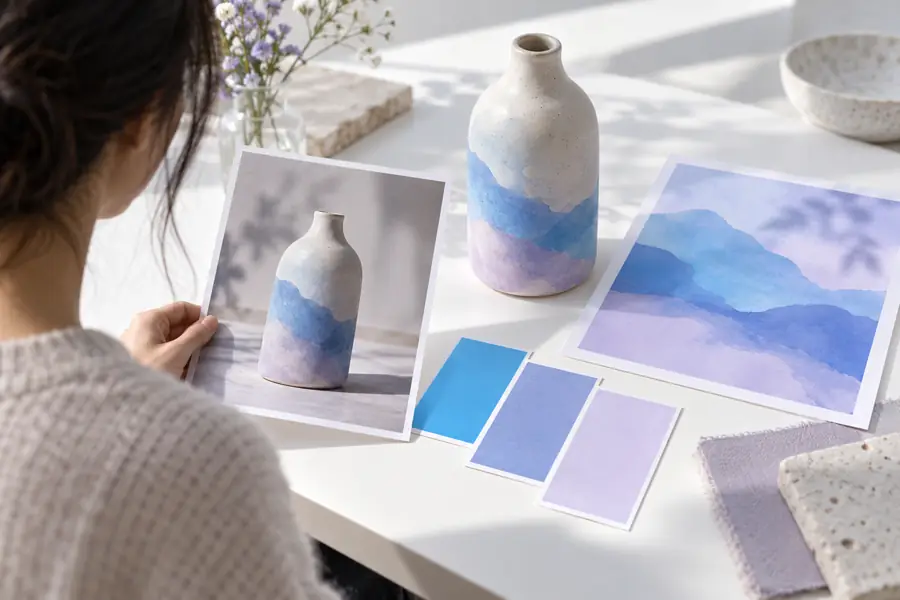 Before preparation
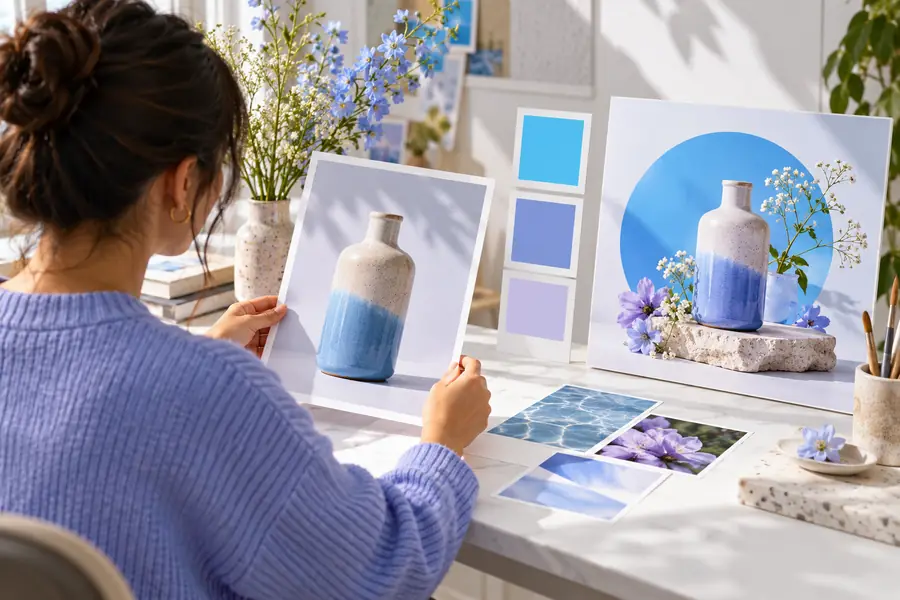 After preparation
Use this checklist to decide whether the source is ready for a Canva layout. Larger dimensions alone do not establish that a file is suitable.
Placement
Original source
May look fine as a thumbnail but soften when enlarged.
Prepared image for Canva
Reviewed at the size and crop planned for the layout.
Edges
Original source
Fine outlines may appear jagged or blurred.
Prepared image for Canva
Outlines checked for halos and unnatural sharpening.
Faces
Original source
Small facial details can be hard to assess.
Prepared image for Canva
Identity and expression checked against the original.
Visible text
Original source
Tiny letters may be unreadable.
Prepared image for Canva
Critical wording verified or recreated as editable text.
Background
Original source
Compression marks may be inconspicuous at small sizes.
Prepared image for Canva
Flat areas checked for blotches and invented texture.
Fallback
Original source
Best available source retained for comparison.
Prepared image for Canva
Prepared version used only if it improves the actual placement.
Start with the clearest original you have. Prepare it, compare important details with the source, and place the result only if it survives your intended crop. The next step opens the Imageupscaler product destination; it does not edit a Canva document for you.
Prepare my imageYes. Prepare the source image separately, inspect the result, then add the file to your Canva design. This does not require the upscaler to operate inside the Canva editor.
It may improve how a small source looks, but it cannot guarantee detail that was never captured. Check the photo at its intended flyer size, and seek a better original if faces or product features look unreliable.
A screenshot can contain small letters that become distorted when enlarged. For important wording, recreate the text as editable elements in your design and use the image only for visual content that passes inspection.
Review the final crop, not just the full image file. Look for halos around edges, changes to faces, artifacts in backgrounds, and incorrect lettering before you export the finished design.