Imageupscaler

Phone photo workflow

A practical image upscaler for android photos

An image upscaler can help prepare an Android photo for a larger display, but the result still needs a close inspection. Start with the best original you have, then compare the processed image with it before sharing.

Check available options after handoff
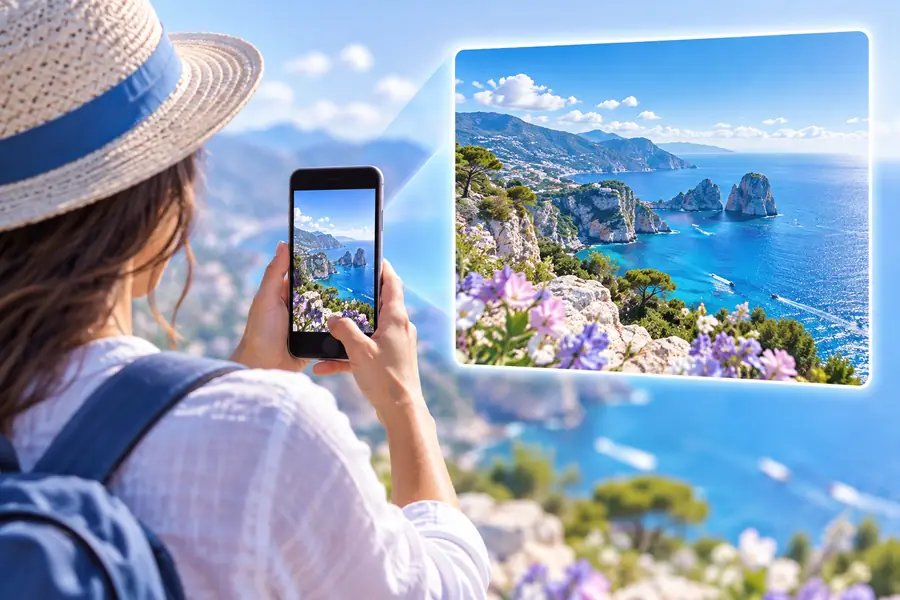
Imageupscaler visual showing an enlarged image

the audience's existing pipeline

Most Android photos pass through a camera app, a gallery editor and a messaging or design app before anyone considers an image upscaler.

A forwarded photo may already be compressed

Messaging apps can reduce image dimensions or discard detail. An image upscaler cannot recover an untouched original from pixels that are no longer there.

Workaround

Find the camera original in your gallery or cloud backup before processing.
Blur is not the same as low resolution

A larger file can still show motion blur or missed focus. Upscaling may make those flaws more visible rather than restore a sharp subject.

Workaround

Choose the sharpest frame first, and judge eyes, edges and lettering at normal viewing size.

A bigger photo is not a guaranteed print

Print suitability depends on the source, intended physical size and visible artifacts, not just the output pixel count.

Workaround

Test a crop at the planned print size before committing to the full image.

A web workflow is not an Android app

This page does not establish a dedicated Android installation, gallery integration or offline processing.

Workaround

Check the destination's current upload and export options before making it part of a mobile workflow.

where we slot in

Put the image upscaler between selecting your original and placing the result in its final destination.

  1. 1

    Select the source

    On Android, locate the original camera file when possible. Keep an untouched copy, note its dimensions and avoid starting from a screenshot of the photo.

  2. 2

    Set a restrained goal

    Decide whether you need a larger screen image, a design asset or a print test. Describe what must stay faithful, especially faces, logos and text.

  3. 3

    Compare and place

    Inspect the original and processed image at the same display size. If the result holds up, save a separate copy for the app or project where it will be used.

before/after

Compare what changes in the image, not just whether the output file is larger.

Android source photo
Processed image

File to keep

Android source photo

Untouched camera original

Processed image

Separate working copy

Pixel dimensions

Android source photo

Check the source file's dimensions

Processed image

Check the exported file's dimensions

Faces

Android source photo

Reference for real features

Processed image

Check for altered eyes, skin or hair

Text and logos

Android source photo

Reference for exact shapes

Processed image

Check every character and edge

Texture

Android source photo

May contain noise or compression

Processed image

Check for waxy smoothing or artificial patterns

Final use

Android source photo

Useful as a comparison

Processed image

Accept only if it suits the intended size

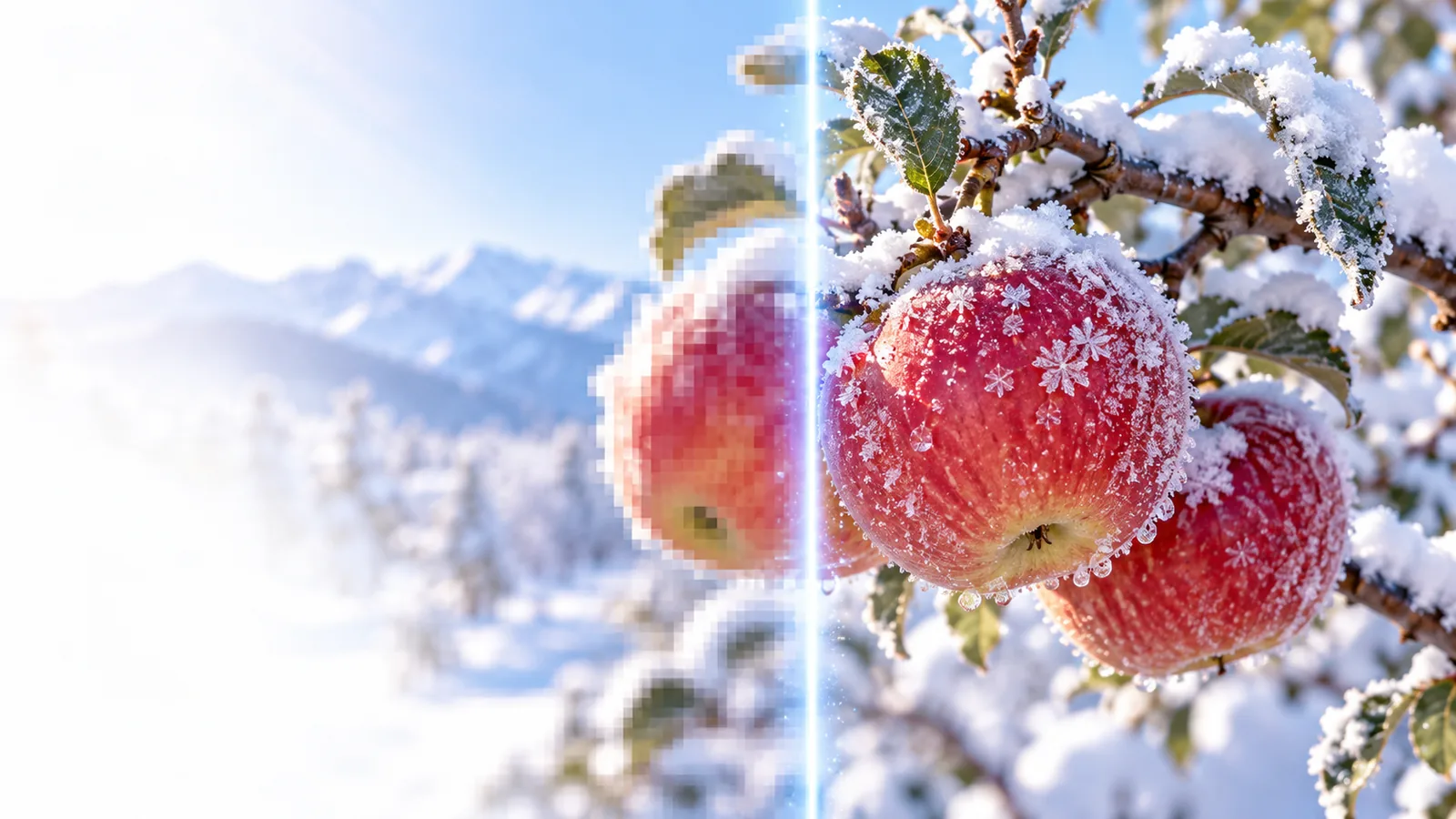
Example image before upscaling Before
Example image after upscaling After
This illustrative pair shows what to inspect, not a promised result for your Android photo. Compare subject edges and background texture as well as apparent sharpness.

deliverable spec

The useful deliverable is a checked image for a specific destination, plus the original for comparison.

Family photo keeper

A small Android portrait needs to look comfortable on a larger screen.

Keep the original and inspect the enlarged copy for natural eyes, hair and skin before sharing; image upscaler examples free offers more situations to compare.

image upscaler examples free

Social post designer

A phone photo will become one element in a Canva layout.

Check the subject at its actual placement size, then use the image upscaler canva guide to plan the design handoff.

image upscaler canva

Marketplace seller

An Android product photo has to show a label or surface accurately.

Reject invented lettering and misleading texture; the ai image upscaler guide explains what to scrutinize when detail appears enhanced.

ai image upscaler

Poster maker

A phone image is being considered for a larger physical piece.

Check dimensions and print a small test crop rather than treating a 4K label as proof of print quality; image upscaler 4k covers that resolution goal.

image upscaler 4k

Prepare your Android photo for its next use

Choose your best original and keep it safe. Use Imageupscaler as a starting point for the image upscaler workflow, then judge any result against the source before using it in a post, design or print.

Prepare my image
  • Start with the original file
  • Inspect faces, text and texture
  • Keep a separate final copy

scenario FAQ

A browser-based workflow may let you start from an Android phone, but this page does not verify a dedicated app or a particular mobile upload flow. Check the destination's current options before relying on it.

Choose the highest-quality original you can find, preferably the file captured by the camera rather than a copy forwarded through a chat. A clear source gives you a better reference for judging whether processing helped.

Upscaling can change apparent size and detail, but it cannot reliably reconstruct a subject that was out of focus or moving. Compare the result with the original, particularly around faces and fine edges.

View the source and result at a similar display size, then zoom in to inspect faces, lettering, logos and repeating textures. Also check the image at the size where you intend to share or place it.

No. Keep the original as your reference and save the processed image separately, so you can spot changes or try a different approach later.

Upscale an image
Upscale an image