Imageupscaler

Image enhancement

Get more from an ai image upscaler

An ai image upscaler can enlarge a small picture, but extra pixels do not guarantee accurate detail. Start with the clearest original you have, then judge the result at the size where you will actually use it.

Continues to a partner site
Image enhancement illustration

Prerequisites

Before using an image upscaler, check whether the source contains enough recognizable structure to guide a useful enlargement.

Missing detail stays uncertain

If a face, logo, or distant object occupies only a few pixels, an image upscaler cannot recover facts that were never recorded. AI-generated detail may look plausible without being correct.

Workaround

Find a larger original or a closer crop before enhancing.

Motion blur has a different cause

Enlargement adds pixels; it does not undo the movement that smeared an exposure. Sharpening a blurred edge can make the smear more noticeable.

Workaround

Choose a sharper frame if one exists, then consider enlargement.

Text needs separate verification

Small lettering and numbers can become convincing but inaccurate shapes. Do not treat an enlarged label, document, or sign as a reliable transcription.

Workaround

Compare every important character with the source or obtain the original document.

A larger file is not a print guarantee

The right output depends on the final physical size, viewing distance, and quality of the source. An image upscaler cannot make a tiny, heavily compressed picture suitable for every print.

Workaround

Inspect a proof at the intended print size.

One full run-through

Use the same simple check for a portrait, product shot, or old web image. Keep the original so you can compare rather than relying on memory.

  1. 1

    Choose the best original

    Locate the highest-quality version available, not a screenshot of a thumbnail. Look for visible edges and relatively clean areas; compression blocks and existing sharpening may become more obvious after an image upscaler enlarges them.

  2. 2

    Set a realistic destination

    Decide whether the picture is for a larger on-screen placement, a social post, or a print proof. Use that destination to judge how much enlargement is useful instead of aiming for the largest possible file.

  3. 3

    Compare critical details

    Review the result at normal display size, then zoom into eyes, hair, product edges, repeating patterns, and any text. If an image upscaler changes a detail that must remain factual, keep the original or seek a better source.

Options table

Choose a related guide by the constraint that matters most. These are different decisions, not interchangeable promises about the result.

What fails

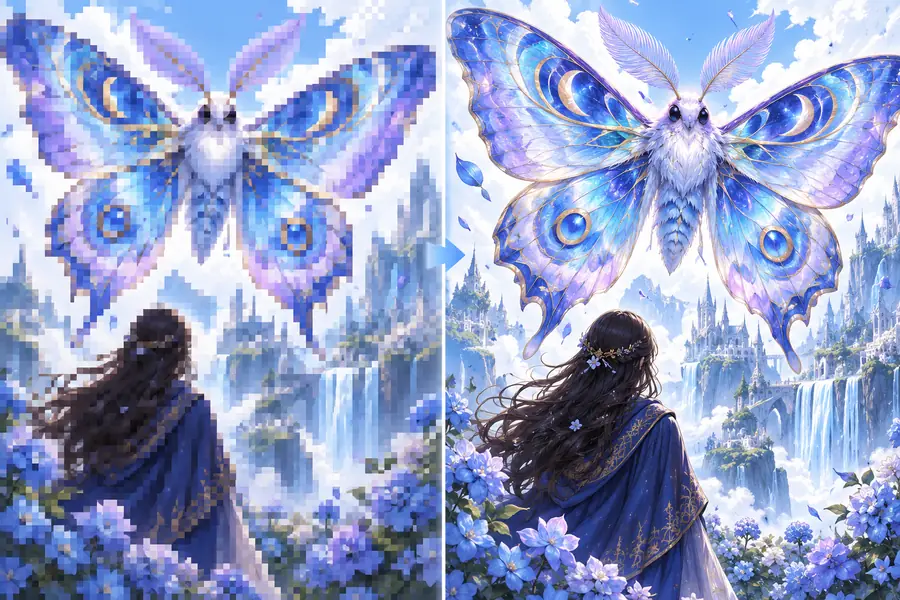
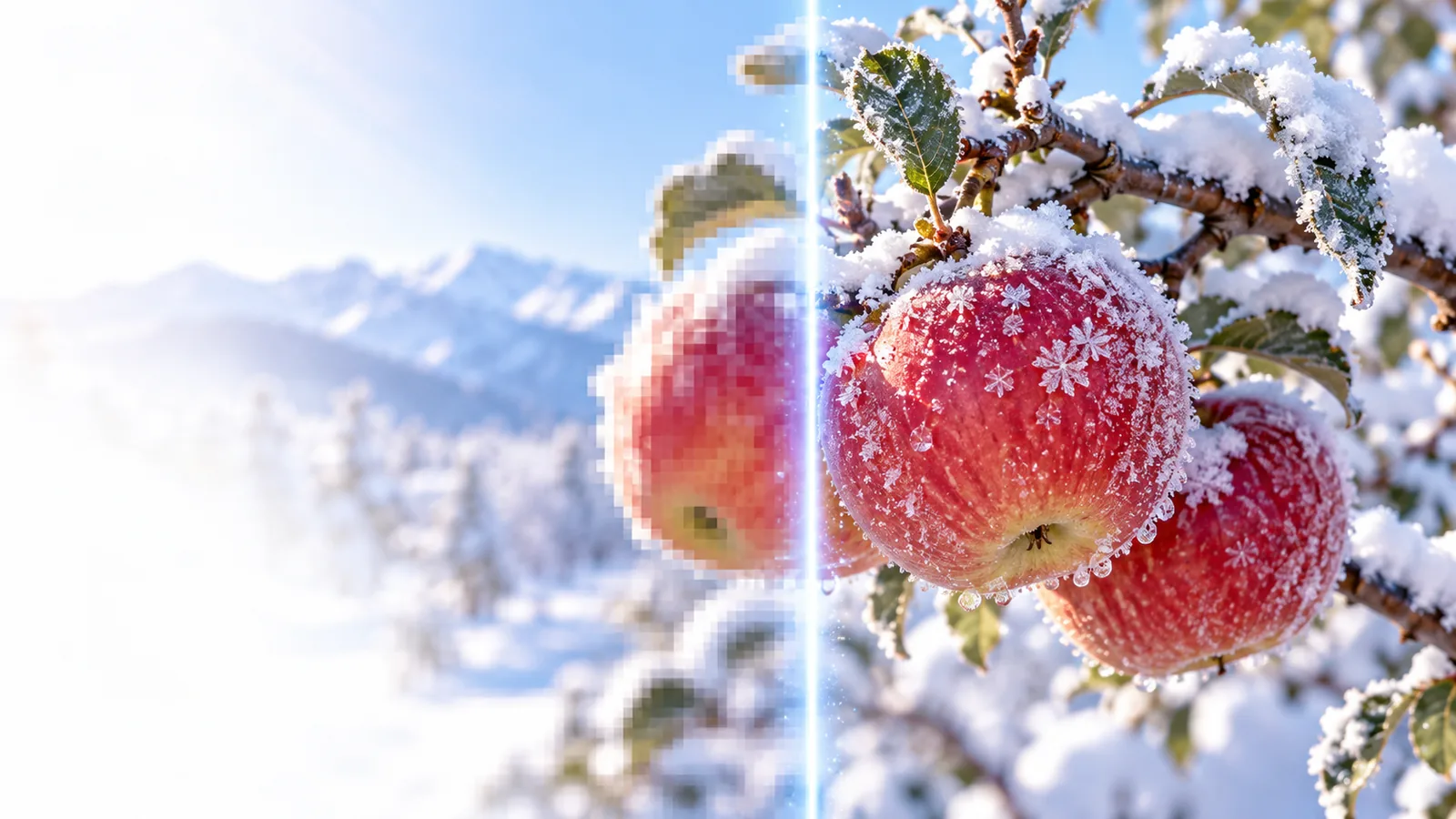
A before-and-after pair makes enlargement easier to inspect, but visual improvement alone cannot prove that newly visible texture was present in the original.

Example image before enlargement Before
Example image shown after enlargement After
Illustrative comparison, not a verified output from this route. Inspect edges, fine patterns, and text in your own image; an image upscaler may make each look cleaner while changing its shape.

Use cases for clearer images

The useful outcome depends on what must remain true to the source. These workflows point to the next decision rather than promising that every picture can be rescued.

Shop owner

A product photo looks soft when placed in a larger listing slot. Preserve packaging and label details while checking the final on-screen size.

A clearer presentation is useful only if the item still looks like the item photographed.

image upscaler 4k

Designer

A supplied graphic needs to fit a layout, but its original dimensions are limited. Compare the intended placement with a measured enlargement.

Select a workable size without assuming a larger file contains accurate new detail.

image upscaler 4x free

Photo archivist

An older digital picture contains visible compression around faces and high-contrast edges. Review reference examples before attempting a larger copy.

Keep the untouched original and flag any features that appear to have been invented.

image upscaler examples free

Review your next image

Start with the picture you actually need

Take your best available source to Imageupscaler’s partner site and evaluate the available image-enhancement workflow there. Keep the original beside any result: an image upscaler is most useful when you can check its changes against a clear purpose.

Explore image enhancement
  • Check the intended display size
  • Compare fine details with the original
  • Verify any lettering independently

AI upscaling FAQ

It enlarges an image while estimating how new pixels should look. Those estimates may improve apparent clarity, but they are not a record of detail the camera or original file failed to capture.

An image upscaler may make some edges appear sharper, but severe motion blur or missed focus leaves little reliable information to work from. A sharper original is usually the better starting point.

Not necessarily. Small characters, fine logo geometry, and repeating marks are particularly easy to alter, so compare them with the source and verify important wording separately.

4K describes a target display resolution, while four-times enlargement describes a change relative to the starting dimensions. Work backward from where the picture will appear, then inspect whether the source can support that increase.

View it at its intended size and check the details that matter to its purpose. If faces, product markings, or other factual features have changed, a larger file is not necessarily a better image.

Upscale an image
Upscale an image