Imageupscaler

Photoshop tutorial

How do you upscale an image in Photoshop? Start here

If you are asking “How do you upscale an image in Photoshop?”, start with Image Size and a copy of your original. This walkthrough covers the settings to change, the defects to check, and when an image upscaler may be worth comparing.

Opens the partner site
Imageupscaler visual showing an enlarged image

prerequisites

Before changing dimensions, check the source image, its intended use, and what enlargement cannot recover.

Missing detail stays uncertain

A tiny or heavily compressed source does not contain the original fine detail. Photoshop can estimate new pixels, but neither its resampling options nor an image upscaler can reliably reconstruct information that was never captured.

Workaround

Find a larger original if one exists. Otherwise, enlarge conservatively and judge the result at its final viewing size.
Blur is a separate problem

Increasing pixel dimensions will not refocus a motion-blurred face or make unreadable text dependable. Aggressive sharpening often adds bright outlines while leaving the underlying blur intact.

Workaround

Address blur before enlarging, and compare the edited result with the untouched source.

A larger file is not automatically print-ready

Changing resolution alone can alter print dimensions without adding pixels. Enlarging with Resample does add pixels, but visible quality still depends on the source, viewing distance, and print size.

Workaround

Confirm the required pixel dimensions with the printer, then inspect a proof at the intended physical size.

Edits cannot replace a clean source

JPEG blocks, banding, and existing halos may become more noticeable after enlargement. An image upscaler may interpret those artifacts as details rather than remove them.

Workaround

Start from a higher-quality original or a less-compressed export whenever possible.

numbered steps

Use this Image Size workflow for a controlled enlargement. Photoshop menu names can vary slightly by version.

  1. 1

    Duplicate and inspect the source

    Open the image and keep an untouched copy. Check its current pixel dimensions under Image > Image Size, then decide the dimensions you actually need. Do not use a vague goal such as “make it high resolution”: a screen graphic and a print have different requirements. View the original at 100% to note blur, compression, or noise before an image upscaler or Photoshop makes those flaws larger.

  2. 2

    Set dimensions with Resample on

    In Image > Image Size, keep the width and height linked so the aspect ratio stays intact. Turn on Resample, then enter the target width or height in pixels. If Preserve Details 2.0 is available in your Photoshop version, try it first for photographs and adjust Reduce Noise cautiously. Compare it with Automatic or another available method; the best choice depends on the source, not just the size increase.

  3. 3

    Inspect the enlarged image

    Confirm the change, then examine faces, lettering, fine lines, and high-contrast edges at 100%. Look for plastic-looking textures, stair-stepped diagonals, grain, or bright halos. Undo and try a different resampling method or a smaller target if the result breaks down. Judge the image at its final display size too; a flaw obvious at extreme zoom may not matter in context.

  4. 4

    Save an appropriate copy

    Keep an editable working file if you expect further changes, and export a separate delivery copy suited to its destination. Check the exported file's pixel dimensions rather than assuming its resolution label tells the whole story. If you are comparing Photoshop with an image upscaler, export both at the same dimensions and inspect equivalent areas before choosing one.

common errors and fixes

If the result looks wrong, identify whether the problem is scale, the source image, or the chosen method before repeating the enlargement.

common errors and fixes

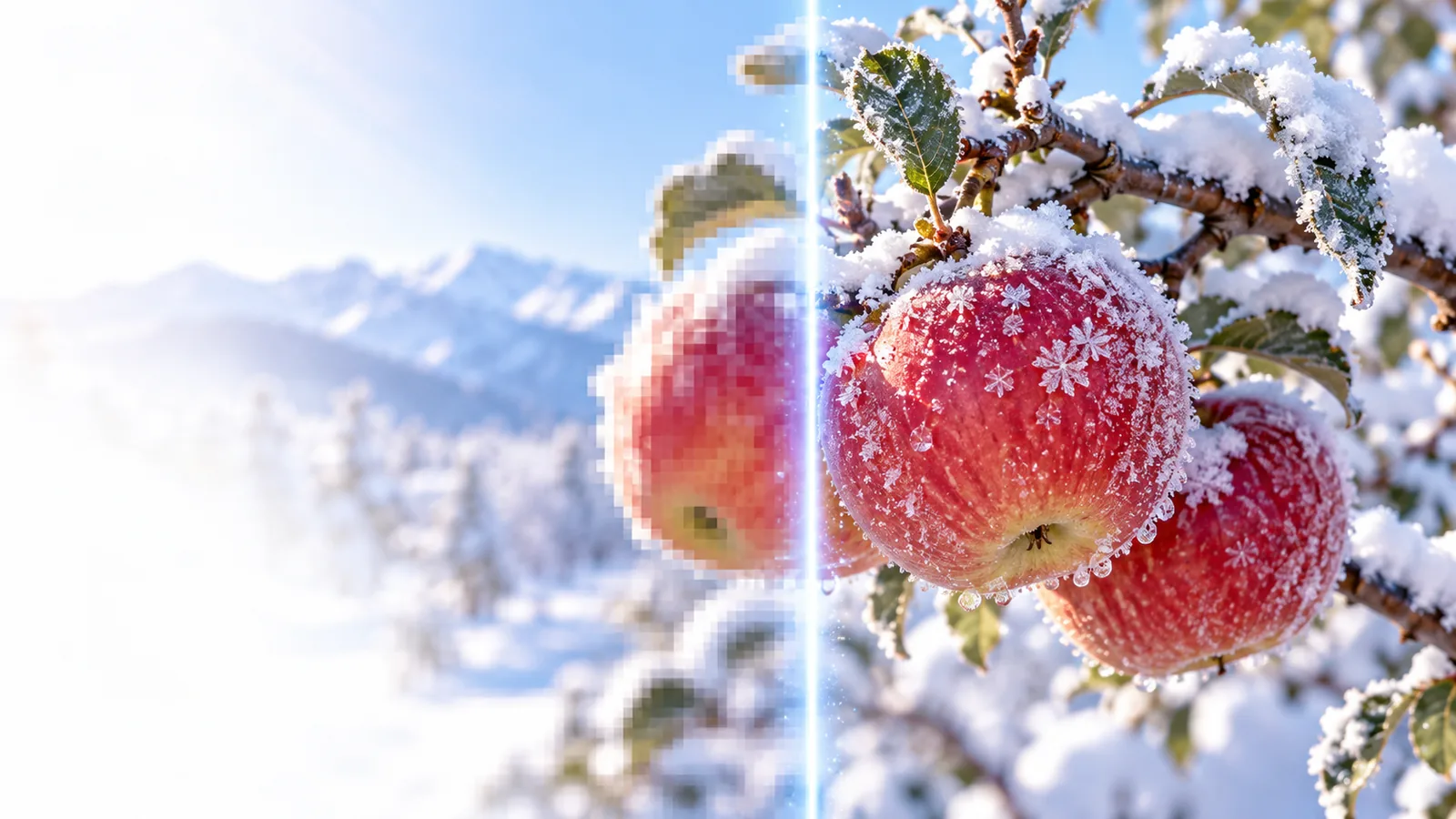
Image before enlargement Before enlargement
Image after enlargement After enlargement
Use the divider to compare apparent edge clarity, but do not treat a visual preview as proof that missing details were recovered. A fair test uses the same source and target dimensions, then checks both versions at 100%.

advanced tips

Choose the workflow that fits the image rather than applying one image upscaler setting to every file.

Portrait editor

A small portrait needs room for a larger layout. Compare Photoshop resampling options on a duplicate, watching eyelashes, hair, and skin rather than judging only the overall preview.

Keep the version with believable texture; a sharper-looking result is not necessarily a more faithful one.

image upscaler examples free

Print designer

A client requests a bigger print. Calculate the needed pixel dimensions from the intended size, then inspect a proof instead of changing only the resolution number.

You can decide whether the existing source is adequate before committing to the final layout.

image upscaler 4k

Social media creator

A cropped image looks soft in a new composition. Try a modest enlargement and compare the exported file with the original crop at the actual posting size.

This avoids adding unnecessary pixels or over-sharpening a graphic viewers will see at a smaller size.

image upscaler canva

Phone photographer

A photo transferred from a phone may be a reduced sharing copy. Check whether the full-resolution original is still available before editing the smaller version.

Starting with the original can improve the result more than switching from Photoshop to another image upscaler.

image upscaler for android

advanced tips

Compare another enlargement approach

Photoshop gives you direct control over dimensions and resampling. If its result does not suit your image, you can explore Imageupscaler's partner destination as another option. Keep your original and compare outputs at the same dimensions; neither approach guarantees recovery of lost detail.

Try image enlargement
  • Keep an untouched original
  • Compare equivalent crops
  • Check the final viewing size

tutorial FAQ

Open Image > Image Size, enable Resample, keep width and height linked, and enter the pixel dimensions you need. Try an available resampling method such as Preserve Details 2.0, then inspect the result at 100% before exporting a copy.

Preserve Details 2.0 is worth testing for many photographs if your version includes it, but it is not always the best-looking choice. Compare methods on the same source, paying particular attention to text, fine patterns, noise, and edge halos.

A resolution value by itself describes how pixels map to a physical print size; it does not necessarily add pixels. Enable Resample to change pixel dimensions, and remember that estimated pixels cannot guarantee genuine new detail.

Photoshop can enlarge it, but blur and compression artifacts may become more visible. Look for a cleaner original first, then test a restrained enlargement and evaluate the result at its intended display size.

Photoshop is useful when you want to control dimensions and compare resampling settings within your editing workflow. An image upscaler is another approach to test, especially when the conventional result appears soft; compare equal-size exports for realism as well as sharpness.

Upscale an image
Upscale an image